Sunday
Dec022012

Windows To Go running on a MacBook Air (Mid 2012)

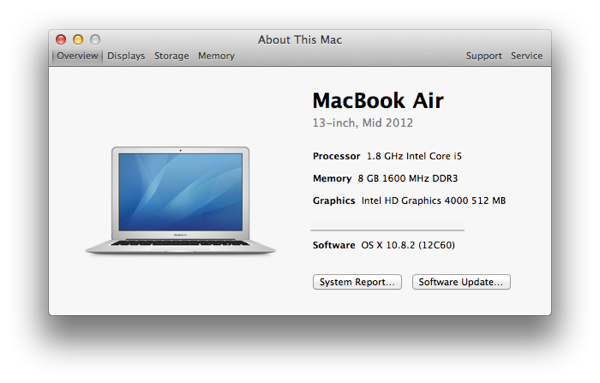
I've been testing Windows To Go in work lately and decided to try and get it running from my MacBook Air. Clearly stated as being unsupported by Microsoft in their Technet posts. :)

MBA

An initial test boot brings you to the Windows loading screen but fails to boot with a nice new BSOD. It won't hang around long but I was lucky enough to make out "INACCESSIBLE_BOOT_DEVICE" before the machine rebooted.


I decided to try and hunt down drivers for the MacBook Air's hardware for Windows. The easiest source of these is the Boot Camp Assistant in Mac OS X. 

BCA


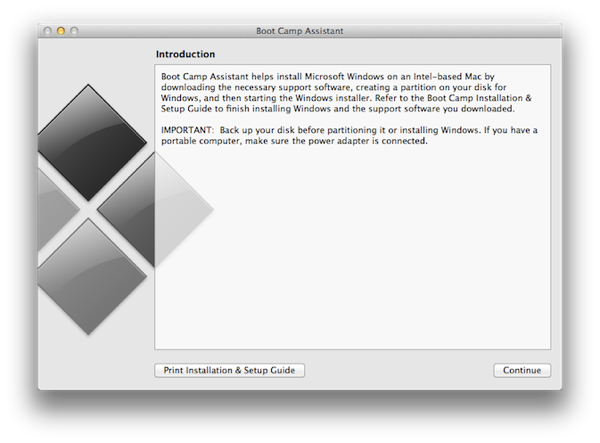
For those of you who don't know, Boot Camp Assistant is designed to help create an alternate partition on your Mac where you can run a Windows environment natively by selecting it at boot. This does this by non-destructively partitioning the disk and then providing the user with a ISO image or a burned CD containing all the relevant drivers to get Windows up and running on Apple hardware. How convenient!

The next screen in the Boot Camp Assistant allows you to "Download the latest Windows Support software from Apple". This is the option we want!

BCA2


Next up gives you two options:

  • Burn to a CD/DVD
  • Copy to an external drive

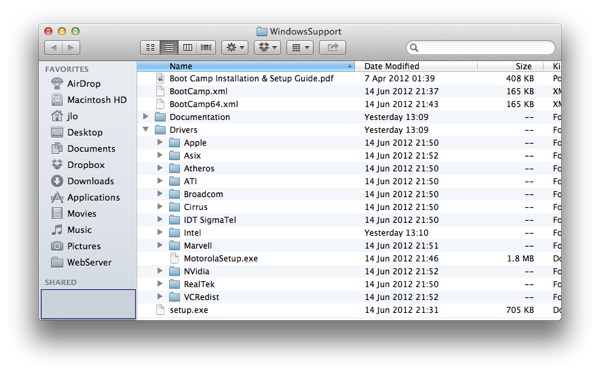
I chose the first option. As I don't have a CD/DVD burner this created a folder called "WindowsSupport" that contains all driver files required.

BC3


Next up requires a Windows PC with 'dism' available. We need to load in the drivers into the Windows To Go drive:

dism /image:<path\to\WTGDrive> /add-driver /driver:<DriveLetter>:\WindowsSupport\Drivers /recurse

This command should inject all of the drivers present in the Boot Camp generated support file into the WTG media, in my case, 161 drivers were loaded.

When complete, remove the driver and test boot into the Apple! Now that the USB 3.0 controller driver is loaded in it can finally contact the boot device and load the OS. Occasionally when booting I got a BSOD but this seemed to disappear on the second boot attempt.

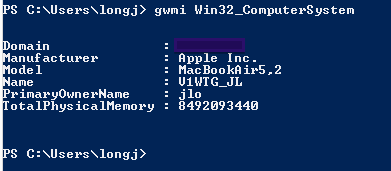
NewImage


WTG MacBookAir 1

Saturday
Jan282012

Office 365 : Reclaiming licenses

Migrated to Office 365? Running low on licenses and want to do a review of existing license assignments?

In work, we recently had to do a reclamation of licenses from users who had left the company but had somehow managed to retain their licensing status in Office 365.

To help with this I created a powershell script that would get a list of disabled Active Directory accounts who had a UPN (UserPrincipalName) that was formatted for use in Office 365 and cross reference that with the list of licensed users in Microsoft Online Services. Surprisingly Microsoft haven't included something like this in the existing views. I'm sure it'll be added in an upgrade...

Behold the results! Make sure you change the UPN value being queried below as I'd be surprised if ye're using DOMAIN.COM! All comments and suggestions on improvements are welcome. I'm relatively new to Powershell.

Import-Module ActiveDirectory
Import-Module msonline

Connect-MsolService -Credential (Get-Credential)

#$ErrorActionPreference = $SilentlyContinue

# Create counter and results array
[int]$i = 0
$results = @()

# Query AD for all accounts with UPN needed for Office365 that are disabled and save to array
$disabledUsers = Get-ADUser -Filter ({UserPrincipalName -like "*@DOMAIN.COM" -AND enabled -eq $false}) | select UserPrincipalName

# For all entries in $disabledUsers, query their licensing status on MS Online and save to $results
for ($i=0; $i -le ($disabledUsers.count-1); $i++) {
	$results += get-msoluser -UserPrincipalName $disabledUsers[$i].UserPrincipalName -ErrorAction SilentlyContinue
}
# For all $results where isLicensed is TRUE, output the DisplayName and License status
for ($i=0; $i -le ($results.count-1); $i++){
	if ($results[$i].isLicensed -eq "True"){
		$results[$i] | select DisplayName, IsLicensed 
	}
}
Sunday
May012011

Clean out old items from your Downloads folder using find & crontab

I got a bit lazy when it came to cleaning out my downloads folder. Old .DMG files, installer files and other detritus were bloating my Download folder so that the stack view in my Dock was becoming a pain to use.

I decided to adopt a bash script we run in the office at home to aid me in my quest for a tidy Downloads folder! By leveraging the find command in bash, a user can create a script that can find any files in a directory that match certain criteria, e.g. type, file name and date created/modified.

In my case, once found, the files will be deleted. Instead of using -mtime to determine age, you can also use -atime or -ctime. I'll leave it up to yourselves to read about that though! For a downloads folder and maybe for different file types,  -atime may be more appropriate for some of you. However, since I'm dealing with installer files, -mtime will suffice!

Once the script has been created, apply to your user crontab at whatever interval you so desire!

#!/bin/bash
#
#       Delete files older than 21 days in Downloads.
#
echo "Deleting (M)PKG, DMG and ZIP files that are older than 21 days in Downloads."
 
# Delete all (M)PKG's older than 21 days
find ~/Downloads/ -name "*.pkg" -type f -mtime +21 -delete
find ~/Downloads/ -name "*.mpkg" -type f -mtime +21 -delete
 
# Delete all DMG's older than 21 days
find ~/Downloads/ -name "*.dmg" -type f -mtime +21 -delete
 
# Delete all ZIP's older than 21 days
find ~/Downloads/ -name "*.zip" -type f -mtime +21 -delete
Sunday
Mar132011

Ruby Script: Remaining Mobile BB Data Allowance

I recently changed to Three.ie as my mobile broadband provider. They provide a nice handy way of checking remaining monthly data allowance via their "my3.three.ie" service. Signing in is handled automatically on their side based on the network you're using. Handy!

Since I've been messing around with Ruby a bit I figured I'd try and make a ruby script that would check my remaining data for me! My efforts are below!

Please comment on any improvements that you think I can make. Especially relating to the instance vs. class variables!

I use this script in combination with a bash script to display data on my desktop using GeekTool. The bash script attempts to ping the mobile gateway's IP address. If it is available, the ruby script is executed. Simples!


#!/bin/bash
#
#	Pings once to see if my Huawei B260a mobile gateway is reachable
#	if yes, execute Ruby data allowance checker
#	else, exit
#
ping -c 1 -t 2 192.168.4.1 >/dev/null
if [[ $? == 0 ]]; then
	ruby ~/Programming/Ruby/MyStuff/threeMobileBroadband.rb
else
	exit
fi


#!/usr/bin/env ruby
#
require 'rubygems'
require 'mechanize'

class ThreeMobileBroadband

@@baseURL = "https://my3.three.ie"
  
def login
  @agent = Mechanize.new

  # First Single Sign On page
  @landing1 = @agent.get 'https://my3.three.ie/myaccount/postPayFreeUnits.do'
  @landing2 = @agent.get @landing1.links[0].uri
  # Then click the continue button presented to get to account options section
  @@usagePage = @agent.post("#{@@baseURL}#{@landing2.forms[0].action}")
end

def getRemainingData
  # Parse for remaining data table
  @usageValue =  @@usagePage.parser.xpath('//div/div/div/div/table/tbody/tr/td').to_s
  # Get the data, and sub out HTML, then sub out whitespace, then split into array at a close bracket
  @data = @usageValue.gsub(/<\/?[^>]*>/, "").gsub(/\s+/, "").split(/\)/)
  return @data[1]#.inspect
end

def remainingDataAsOf
  # Parse for caption containing the date & time the remaining data was checked
  @asOfDate = @@usagePage.parser.xpath('//div/div/div/caption/span').to_s.gsub(/<\/?[^>]*>/, "").gsub(/\*\s+/, "")
  return @asOfDate
end

end

three = ThreeMobileBroadband.new
three.login

puts "3 Mobile Broadband Pro"
puts "-----------"
puts "#{three.getRemainingData} MB remaining\n"
print "#{three.remainingDataAsOf}\n"
puts "-----------"
Friday
Feb182011

Troubleshooting: Cisco 877 on Eircom ADSL2+

During the actual configuration of the Cisco 877s 2 weeks ago some issues arose which needed some debugging! All commands shown below were entered via global configuration mode.


Cisco 877 with a Linksys WAG160N on top!

DNS lookups and SSL connection issues:

Initially we had some issues with DNS lookups and connections to SSL secured services like HTTP and IMAPS. It turned out that I had failed to alter the MTU values! I didn't actually think that I had to! My bad!


The internal VLAN interfaces needed their maximum segment size (MSS) values  adjusted to compensate for the 8 extra bytes needed by the PPPoE header.

int vlan1
ip tcp adjust-mss 1452
exit

The GRE tunnel interfaces also needed some adjustment. This presented as being unable to access services on the other end of the VPN. Again, the MSS values needed to be lowered to account for the GRE header and IPsec headers.


int tun0
ip tcp adjust-mss 1300
exit


ADSL2+ sync problems

There was also some issues getting DSL sync and proper downstream/upstream speeds. Initially, with the ATM interface set to automatic, it was only getting 7meg down. To achieve the full speed I set the DSL operating mode explicitly to ADSL2+.


Still no joy though! I lost DSL sync. This was countered by setting the DSL sync mode to ANSI on the ATM interface. Once that was done, the DSL sync'd and proper speeds were achieved.

Below are the commands used on the interface.

int atm0
dsl sync mode ansi
dsl operating-mode adsl2+
exit
Monday
Feb072011

Configuring a Cisco 877 Integrated Services Router on Eircom Business Broadband

I decided to finally go ahead and get some Cisco gear!

To start off nice and easy, I elected to get some devices that would prove useful at home. To that end, I decided to get two Cisco 870 Series Integrated Services Routers. These would allow for me to experiment more with IOS out of college as well as providing some more security related services for Dad. Namely, a site-to-site VPN linking home with the office.

Click to read more ...